
Build training plans for clients as fast as in a spreadsheet.
The Myron Coach program builder shows a whole training block on one screen. You work with the keyboard, see your client's history next to the cell and assign the plan with a start date.
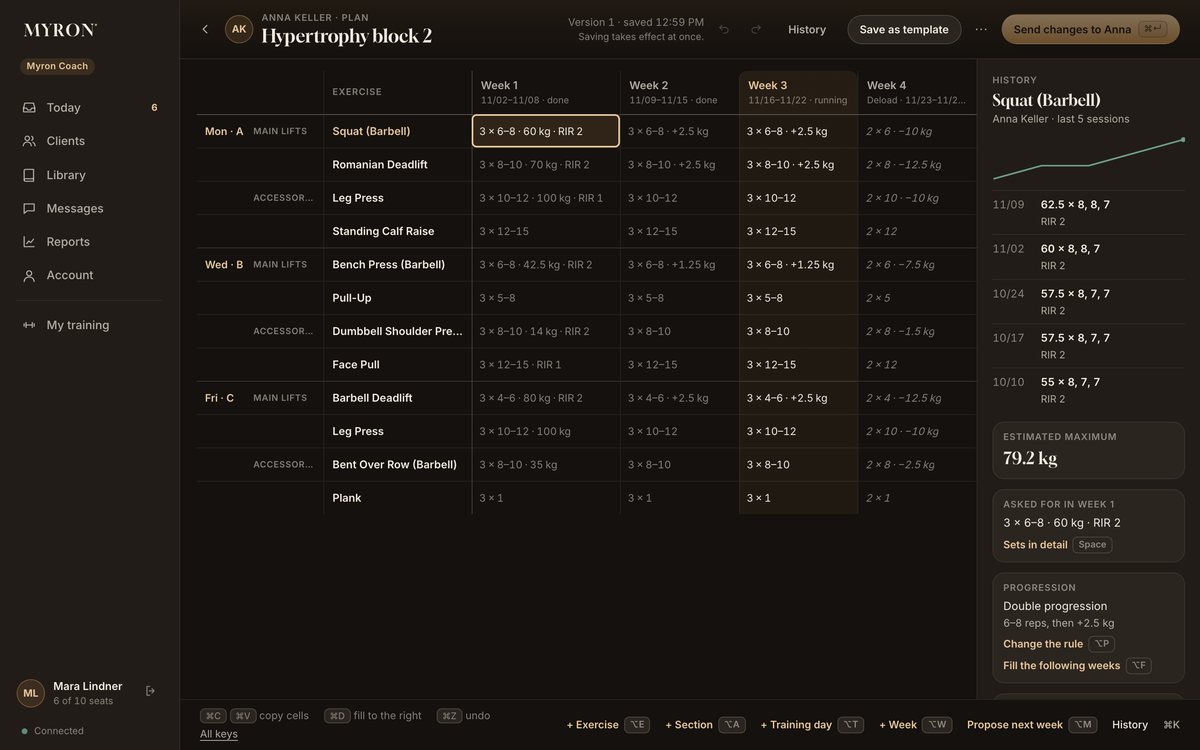
One block, one screen
Weeks are columns, training days are rows. Every cell is the prescription for one exercise in one week. You see right away how volume and weight develop across the block, and where the deload week is.
You type shorthand into the cell: 3x8 for three sets of eight reps, 8-10 for a range, +2.5kg for the increase over the week before, 80% for percent of the maximum, rir2 or rpe8.5 for effort.
- Up to 52 weeks per program
- Sections such as warm-up, main work and accessories
- Superset, circuit, AMRAP, EMOM and intervals
- Per set: reps or a range, weight or percent of the maximum, RIR or RPE, tempo
Keyboard instead of mouse travel
Anyone who builds plans in a spreadsheet wants to keep their hands on the keyboard. The builder does what a spreadsheet does: copy cells and whole weeks, paste, fill to the right, undo. You can even copy cells from your spreadsheet and paste them into the grid.
A bar at the bottom shows the most important keys. All keyboard shortcuts are in the handbook.
The history is right alongside
When you select an exercise in a client’s plan, the right edge shows their last five sessions of that exercise and the estimated maximum. You decide the next week with the real numbers in front of you, without opening the client file in a second window.
Import an existing plan
You already have your plans. Upload a spreadsheet, a PDF or a photo, or paste text. Myron reads out exercises, sets and weeks and puts the result into the grid as a draft. Exercises that Myron cannot match with certainty stay open until you have picked them. Nothing is saved until you say so.
- Formats: pasted text, CSV, TXT, XLSX, PDF, JPG, PNG
- The import is an AI request and counts toward your allowance
Progression that keeps up
For each exercise you define how it continues: double progression, linear progression or “follows the training”. After every finished workout the rule sets next week’s weight. What you enter by hand stays, and deload weeks are left out.
Assign and keep maintaining
You assign a program from your library to a client with a start date. From then on their plan is its own version that you can adjust for them. If you change the template later, Myron shows which assigned plans are behind. With “Carry over” you decide per client whether their plan gets the change. What has already been trained stays as it was.
- Every save is a version you can view and restore
- Your client sees the plan, the calendar and the session of the day in their app
What works where
| Workspace in your browser | Full builder with grid, history, import, progression, versions and carrying over. Built for wide screens from about 1100 pixels. |
|---|---|
| Trainer mode on your tablet | Grid with progression, fill, versions, history and assigning. Without import and without carrying over. |
| Trainer mode on your phone | Edit the plan day by day. |
| On the client's side | Plan, calendar and today’s session on the web, on iPhone and Android. Move or skip sessions. |
Step by step in the handbook
- Build and assign a programStep by step: create a training program in the weekly grid, fill cells with shorthand, import an existing plan and assign the program to a client.
- Set up progressionWhich progression rules the program builder offers, how a rule sets next week's weight after every workout and why the values you set by hand stay.
- Change a template and carry it overWhat happens when you change a program template, and how you carry the change over to assigned plans per client without overwriting what was trained.
- Keyboard shortcutsAll keyboard shortcuts of the Myron Coach workspace: jumping between areas, inbox, client list, client file, check-ins, program builder and video.
Frequently asked questions
Can I bring over my Excel training plans?
Yes. You upload the file as XLSX or CSV, or you copy the cells and paste them. Myron turns that into a draft in the grid that you check and save.
Can I assign a plan to several clients?
You assign a program to each client separately, because each one gets their own start date. Single training sessions from your library can be assigned to several clients in one step.
Does my client see when I change the plan?
Yes. They get a notification, and the change is in their access log with before and after.
Is there a PDF export for printing?
No. The plan lives in your client’s app and in the web portal. There is no print or PDF export for plans.
Goes well with this
- AI drafts Myron drafts, you decide. What the AI does, what it does not do and how to switch it off.
- Live session and small group You log your client's workout on your phone. On a tablet, up to six clients side by side.
- Your clients' app Training, nutrition and watch in one app for iPhone, Android and the web. Free for your clients.
- Import training plans A spreadsheet, PDF, photo or text becomes a draft in the grid. Step by step.
Start with two clients.
The Start tier costs nothing and does not expire. You sign in with Apple or Google, create your workspace and invite your first client.